
Updated 15 July 2022
UPDATE: This article gives a comprehensive look at using the built-in SplitView control for building navigation. However, Microsoft recognized the need for a navigation based control in their suite of controls. You may find using the NavigationView from WinUI much better.
With the announcements of UWP, I thought I’d share some helpful tips for developing for Windows 10.
This article is going to cover the new SplitView control. In simplest terms, the SplitView allows your app to provide a side panel and content. This is often referred to as a master details design pattern.
However, the control can be used for providing an off-screen navigation system, commonly known as the hamburger menu. In this article, we’ll look at implementing this in a UWP app.

Microsoft introduces the hamburger menu for Windows 10
This type of navigation is a familiar pattern for developers of mobile applications for iOS and Android.
When working with the SplitView control, developers have the option to choose any means possible to show and hide it.
To keep it familiar, the Segoe MDL2 assets font comes with a “hamburger” icon to use in your app. This means you can create that same menu toggle experience in your Windows 10 apps.

Here’s a quick overview of the capabilities of the SplitView and what it can do for your apps.
- CompactPaneLength – When using either of the compact display modes, this will determine how wide your menu will be.
- OpenPaneLength – When open, this will determine how wide your menu will be.
- PanePlacement – This determines which side of the screen you’d like to display the menu, left (default), or right.
- IsPaneOpen – This determines whether the menu is open or closed. When bound, you can control this in your code so you choose when to close or open it.
- DisplayMode – This comes in 4 flavors:
- Inline – The menu is shown alongside the content. It does not close when the user interacts with the content.
- Overlay – The menu covers the content when open, and closes when the user interacts with the content.
- CompactInline – The CompactPaneLength is used to determine how much space to show the menu alongside the content. When open, the content is pushed away from the menu. It does not close when the user interacts with the content.
- CompactOverlay – The CompactPaneLength is used to determine how much space to show the menu alongside the content. When open, the menu overlays the content and closes when the user interacts with the content.
Building a custom SplitView navigation control
As I’ve been working through my own Windows 10 apps, the SplitView navigation system has been a go-to.
As such, I needed to create a way for me to display the pages of the app without navigating away or having to write the SplitView into my controls multiple times as I may have when I used to create Windows 8.1 universal applications.
As such, I created my own custom template which essentially does all of this for me out of the box, creating me an app template that I can jump into without any modifications to it.
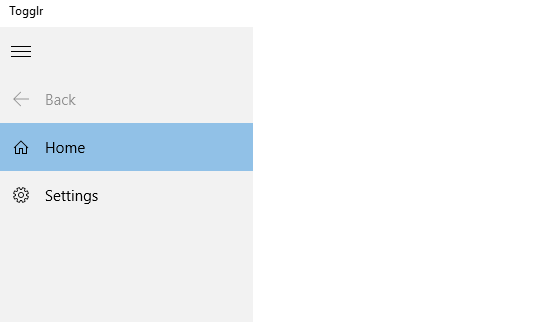
It includes a simple menu system, similar to that shown in the apps in the image at the top of this article, where you can see the icons when the menu is collapsed but you get more content out of it when it’s expanded.
The template also contains a Frame within the SplitView which is used for the main navigation part of the application, so when you select an item in the custom SplitView menu, it will cause a navigation event to occur within the Frame. This means you can create applications which use a common app page utilizing the new SplitView control but also keep that same MVVM friendly navigation of applications that you’re familiar with in Windows 8.1!
As it has been extremely helpful for developing familiar Windows 10 apps, I’ve posted up the source for my template on GitHub which you can take a look at here: Windows-Universal-SplitViewTemplate. If you’re new to Windows 10 app development, get hold of your dev tools and get started!
View source on GitHub Download Visual Studio 2015Feel free to leave any feedback, especially if you find any problems with the template, and definitely feel free to contribute towards it if there are areas you feel could be improved!
Discover more from James Croft
Subscribe to get the latest posts sent to your email.


